Copilot for Azure Logic Apps Standard
March 13, 2024 Leave a comment
Those who live in the code-based world have long been enjoying the option to utilise the generative AI assistance via GitHub Copilot. Powered by OpenAI and Microsoft, Copilot provides invaluable context-based suggestions for completing code patterns based on training from open source code repositories.
Until recently, there was no such assistance available for integration developers who preferred the low-code approach of Logic Apps Standard (although Sandro Pereira has produced a useful utility for Logic Apps Consumption). Given the large number of Logic App connectors available and the inherent complexity in designing integration patterns, a “Copilot” functionality would be especially useful for creating and documenting workflows.
Thankfully, Microsoft is now taking great strides in introducing Azure OpenAI to the Logic Apps development space. In mid-November last year, Microsoft revealed a public preview offering of the Workflow Assistant, a chat interface powered by Azure OpenAI and ChatGPT that can offer context-based suggestions for your workflows that Copilot does for Azure Functions, for instance. Although currently only available in the Azure Portal (not Visual Studio Code just yet), the assistant can perform many useful functions such as:
- Suggest which connectors to use in a given scenario and how to configure them
- Describe how to implement a proven pattern to solve a particular problem
- Describe an existing workflow giving a detailed report of what it does
What’s more, the responses are determined by the workflow currently open and therefore reflect the relevant context. This is an extraordinary help to those who are not necessarily that familiar with all of Logic Apps capabilities.
The Workflow Assistant is accessible in the Azure Portal in the top toolbar (if you don’t see it, be sure you are using a Logic Apps Standard, not Consumption):

In this example, I asked how to construct a simple workflow design for debatching a JSON request and storing the elements in Azure Table Storage:
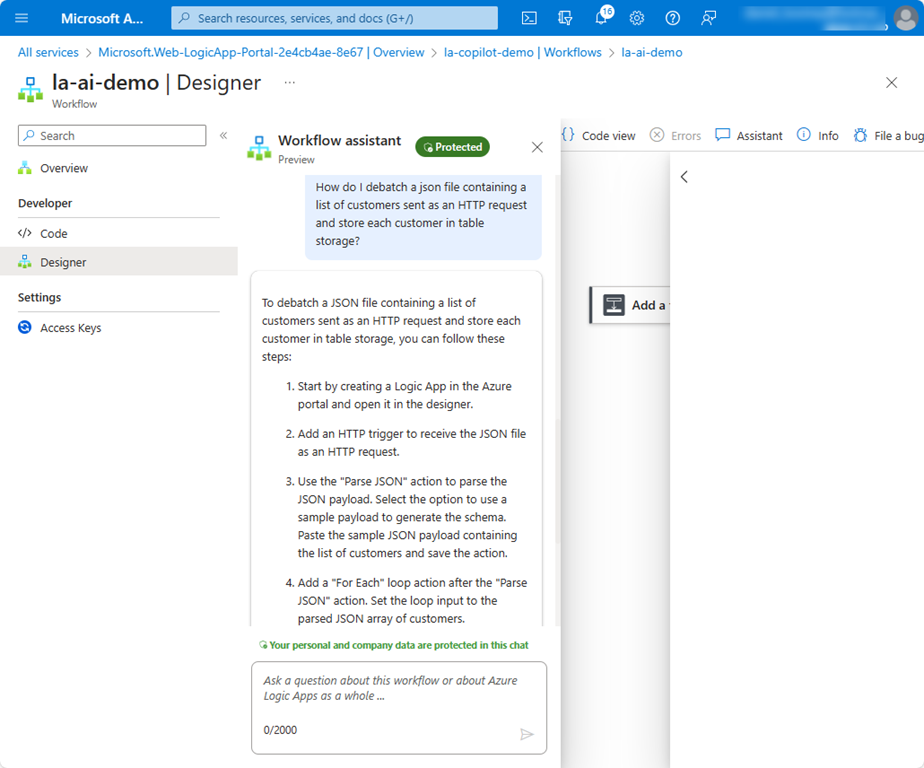
The instructions are basically pretty clear, but if I want more detail I can ask how to do a particular action. For example, I wanted to know how to make a loop run sequentially (instead of the default parallel behaviour):

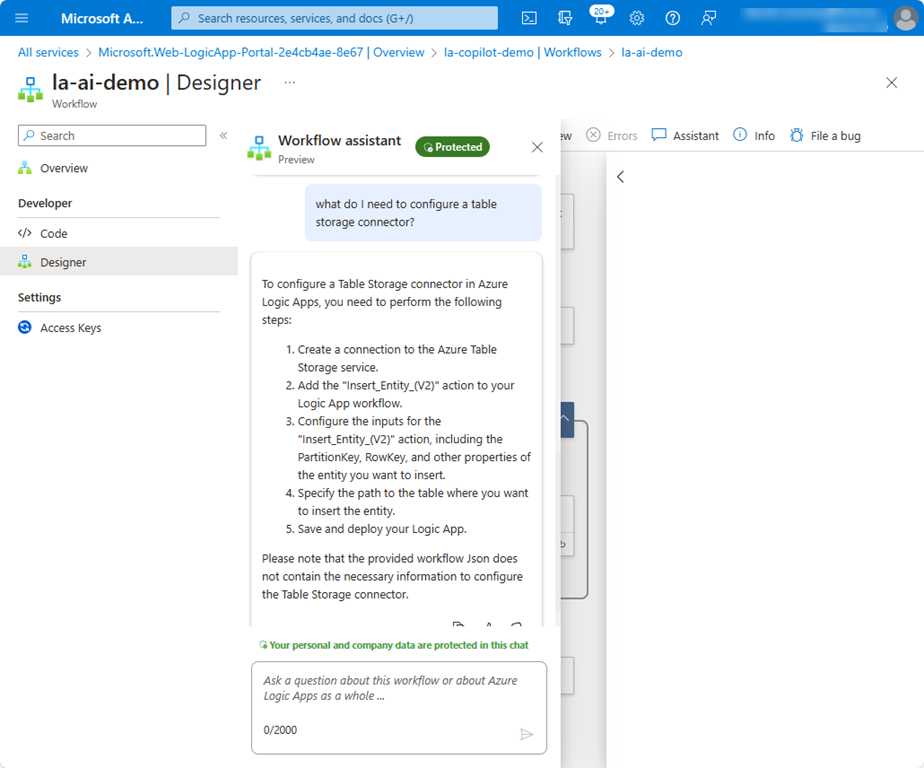
If I got stuck on how to configure a connector, Workflow Assistant had the answer for that too:
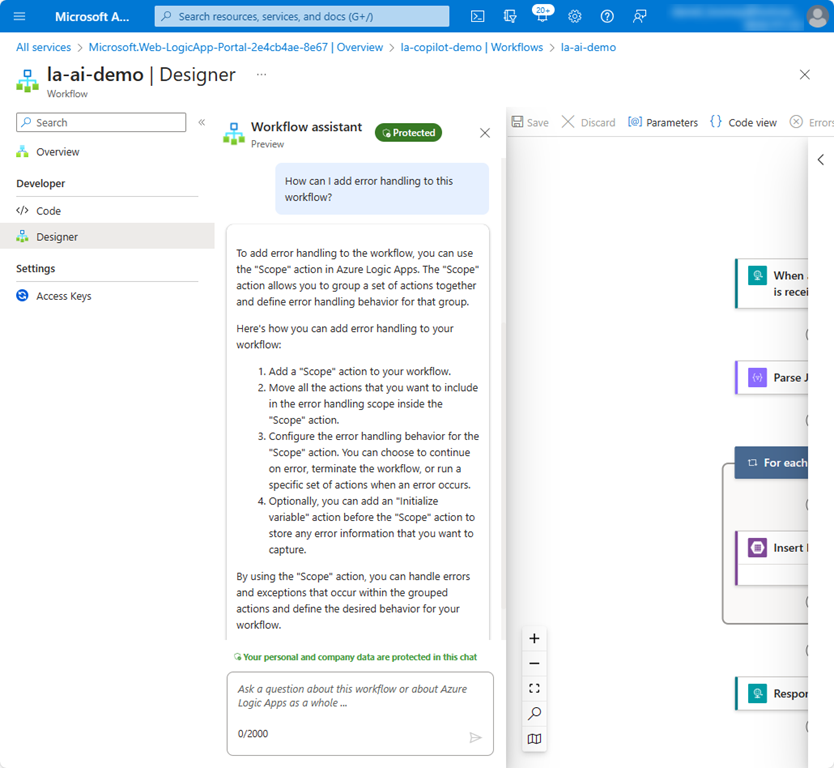
Next, I asked how it might improve resilience through error handling:
Finally, I asked the Assistant to describe the Logic App I created:
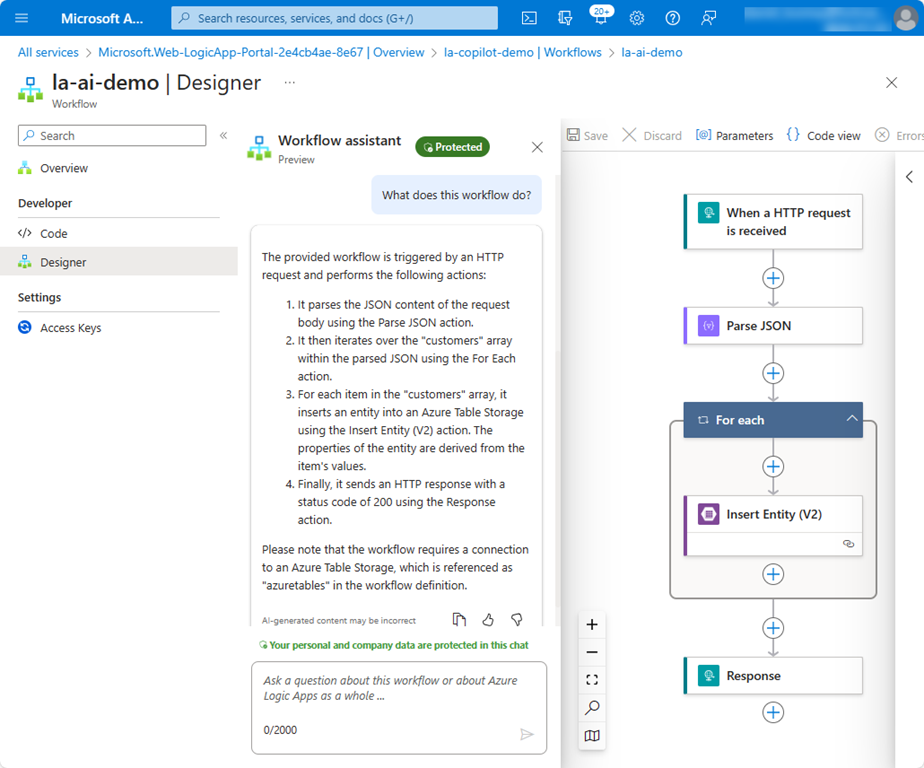
The full text of the response is pasted here:
The provided workflow is triggered by an HTTP request and performs the following steps:
It starts with a Scope action called "Scope_Parse" which contains a Parse JSON action. This action parses the JSON data from the trigger body and validates it against a schema. The schema defines an array of customer objects with properties like id, name, gender, age, email, and state.
If the JSON parsing is successful, the workflow continues to the next action. If there is an error in parsing the JSON, it goes to the "Parse_Error_Response" action, which returns a 400 status code with an error message.
Inside the "Scope_Parse" action, there is a For Each loop that iterates over the "customers" array from the parsed JSON. For each customer, it performs an action called "Insert_Entity_(V2)".
The "Insert_Entity_(V2)" action is an API connection to Azure Table Storage. It inserts a new entity into the "customers" table with properties like PartitionKey, RowKey, Name, Age, Sex, and Email. The values for these properties are taken from the current customer object in the For Each loop.
After inserting the entity, it sets a variable called "currentCustomerId" with the value of the current customer’s ID.
If the insertion is successful, it goes back to the For Each loop to process the next customer. If there is an error in the insertion, it goes to the "Process_Error_Response" action, which returns a 500 status code with an error message.
Finally, the workflow ends with a Response action that returns a 200 status code.
In summary, this workflow receives an HTTP request with a JSON payload containing an array of customer objects. It parses the JSON, inserts each customer into an Azure Table Storage, and returns a response indicating the success or failure of the operation.
Curiously, steps 4 & 5 appear in the wrong order. But other than that, the detailed description is impressive in its accuracy. As always with generated AI content, you should review and assess the result before accepting it as truth.
The cool thing about this is that (for the moment) you do not require a GitHub Copilot account; this feature is currently available to all in Standard Logic Apps. (CAVEAT: That may eventually change as Microsoft’s Azure Copilot offering eventually becomes GA and a licensing model is developed.) Just be aware that there may be limits imposed on large workflows due to the number of OpenAI tokens required. And of course, as with all generative AI offerings, you must review the suggestions carefully to ensure that the answers are fit for purpose.
For more detailed information about Workflow Assistant, please see Divya Swarnkar’s post as well as the official documentation. And if you’re curious about what else Microsoft is doing in the Azure OpenAI space, check out this article on how Logic Apps are being enhanced to help build OpenAI applications!
Microsoft is clearly committed to leveraging AI across all of its Azure offerings. I am excited to see how this will evolve in the integration space and what enhancements we will see in Logic Apps and other Azure Integration Services!
 About Dan Toomey
 Mind Over Messaging