Building a Complete RAG Application in Azure with No Code
March 28, 2025 1 Comment
Retrieval-Augmented Generation (RAG) is a hot item in the AI world right now as organisations are finding it a useful pattern for building LLM-based chat applications against an easily updateable knowledge store, without the expense of re-training the LLM. The pattern provides a base for AI generated responses that are as reliable, context-bounded, and current as the data in the knowledge store (which can be as simple as a collection of documents). Even better, RAG provides a means for the LLM to respond with citations so you can be confident of where the answer is sourced from:
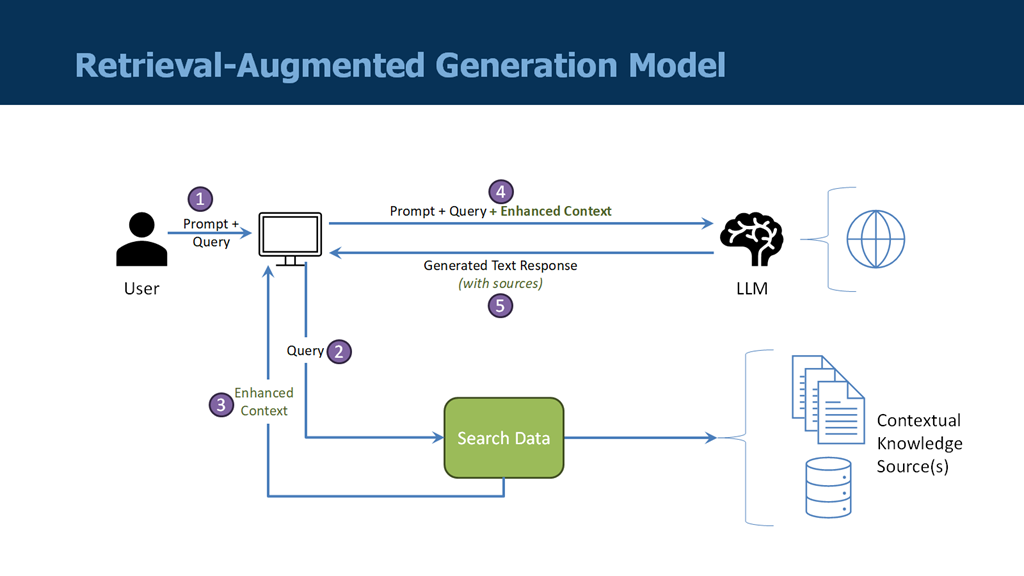
Two things are critical to making a RAG application possible:
-
- Reliable and high-quality components (especially the LLM and the search capability over the knowledge store)
- Carefully constructed workflow solutions for handling both the ingestion of data and the chat interface
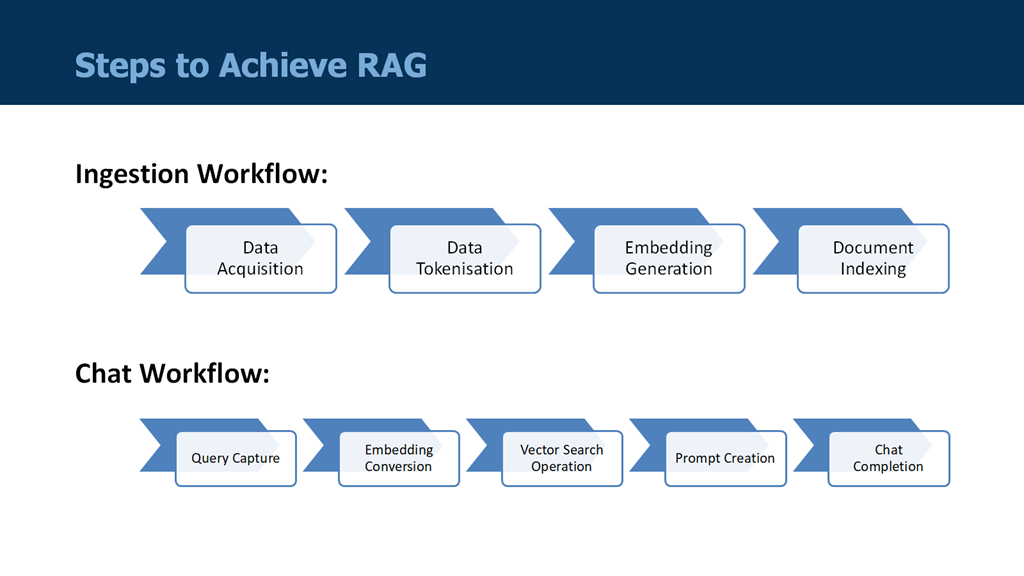
Both of these requirements can be met using Microsoft Azure services – and best of all, with no coding required!
As for the ingestion workflow, Stephen W. Thomas already has provided an excellent video guide for building this using Azure OpenAI, Azure AI Search, and Azure Logic Apps. He takes you through the process step-by-step, including the provisioning of all the necessary services and the permissions required.
Because Stephen’s guide is so thorough, I don’t need to repeat any of it here. However, the video does not cover how to build the chat workflow, which is worth a discussion – especially because I found a couple of potential traps with the Microsoft provided template.
Building the Chat Workflow
Logic Apps now provides a whole collection of templates to kick-start your workflow development (30 as of the date of this blog post). Searching on the dedicated “RAG” category yields a whopping 13 templates, including one for chatting with a RAG application:
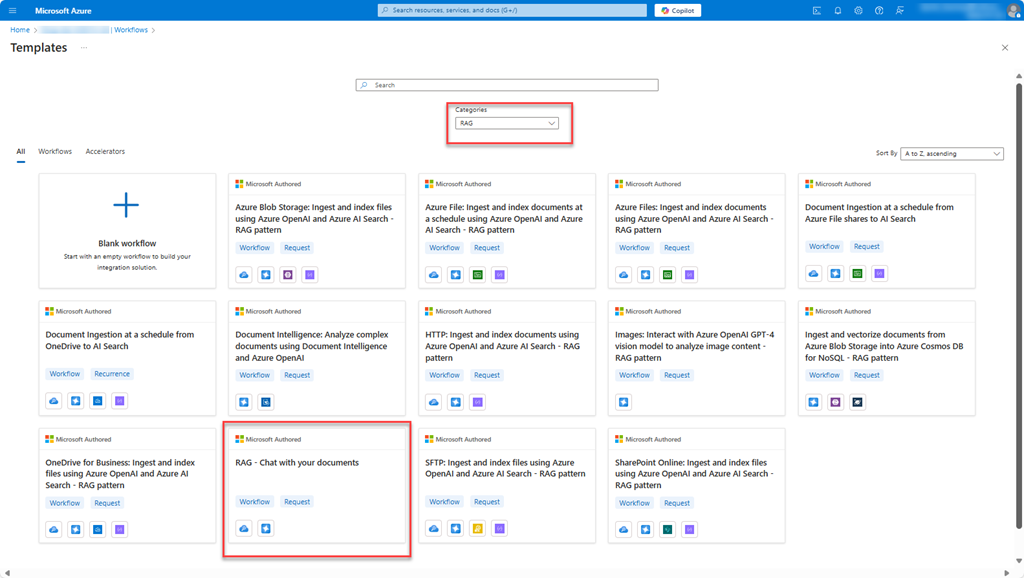
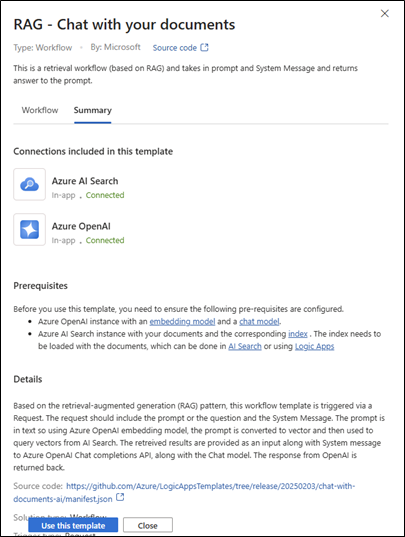
The template summary page identifies the required connectors for AI Search and OpenAI (which you would already have if you followed Stephen’s guide), as well as a description of what it does:
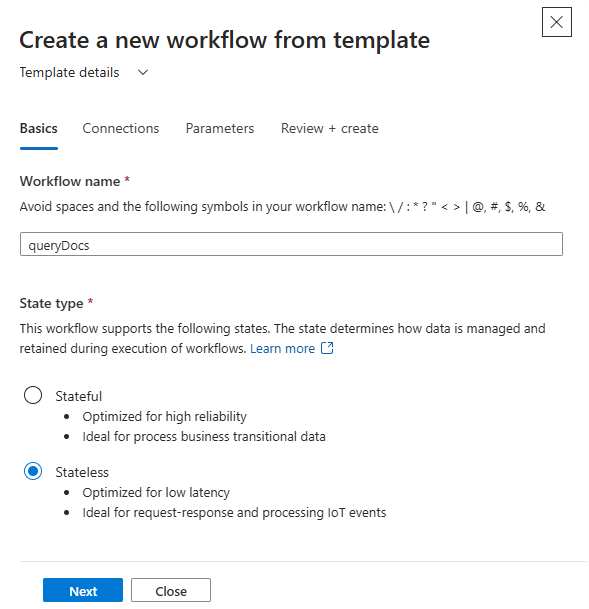
First step is to give the workflow a name and decide the State type. Since this workflow is for a synchronous request-response and does not require persistence, “Stateless” would make the most sense here (saves storage cost):
The next step is to configure the two required connections. Assuming you’ve already implemented the ingestion workflow from Stephen’s guide and you are within the same Logic Apps, the connections already exist and will be automatically configured for you (otherwise you will be prompted to create the connections):

The next step is to define the parameters – and this is where it can get a bit tricky:
-
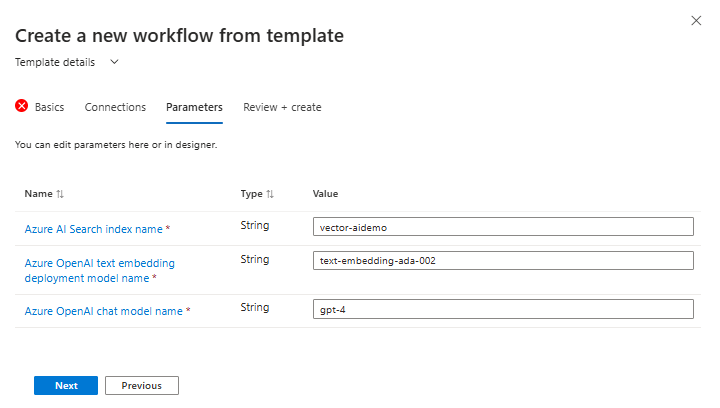
- Azure AI Search index name – this is sourced from the Azure AI Search service Indexes blade, referencing the Name column field
- Azure OpenAI text embedding deployment model name – this is most easily sourced from the Deployments blade in AI Foundry (under the Shared Resources section)
- Azure OpenAI chat model name – likewise, sourced from the same Deployments blade in AI Foundry
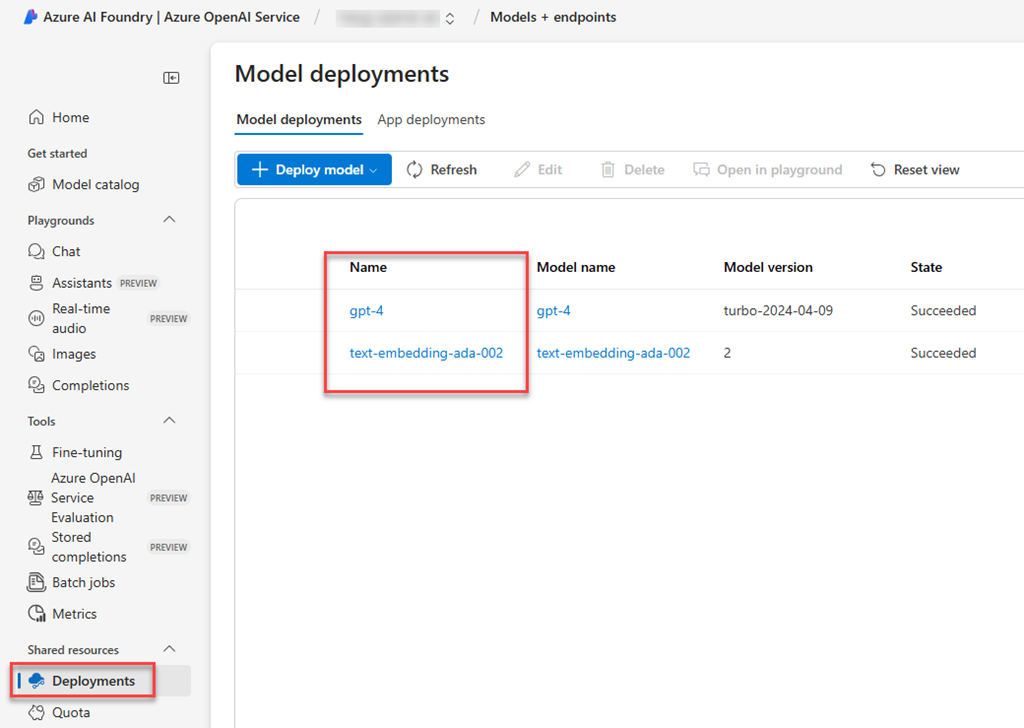
Those last two items both require the deployment name, which may not necessarily be the same as the model name (although in my case it was). If you followed Stephen’s walkthrough to the letter, your correct parameters are likely exactly the same as in this screenshot:
Once you have created the workflow, there are a couple of more tweaks to be made in the workflow designer before this will execute properly. These all have to do with the schema for the AI Search index, which is a little different to the one expected in the chat workflow template. You can find the details of this schema in your Azure AI Search index, clicking on the Fields tab:
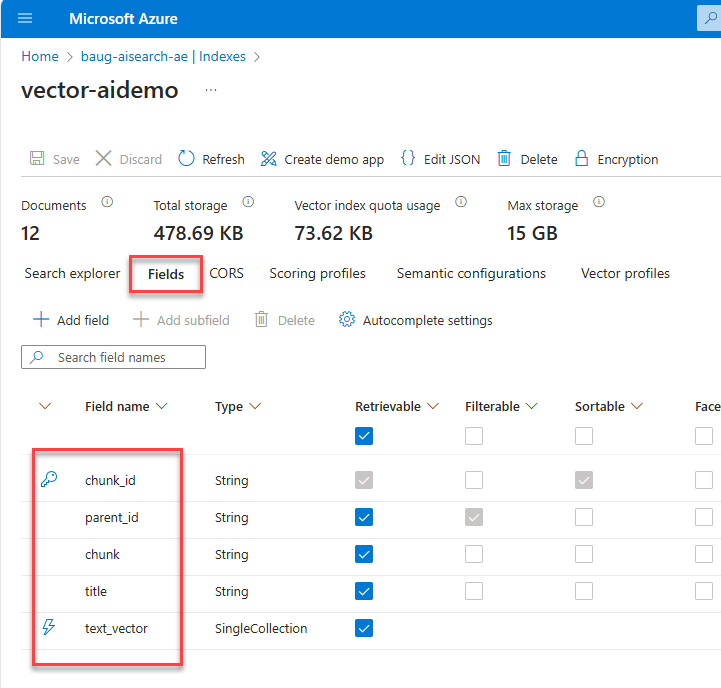
First change is in the AI Search Vector search action. Change the Vector Fields And Values Search Vector Field Name textbox value from “embeddings” to “text_vector”:

Next, in the Extract content from vectors action, replace the two schema field names with the correct ones in Line 7 of the Javascript code, to “chunk_id” and “chunk”, respectively:
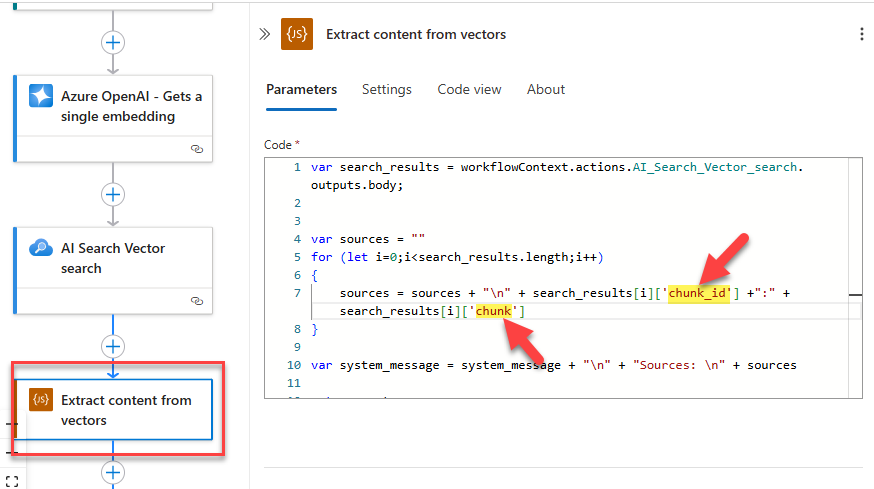
Alternatively, you can replace the entire block of code with the following, as this ensures that the system_message variable is initialised properly and won’t result in the first characters of the output being “undefined” (although this doesn’t seem to affect the processing of the chat completions):
var search_results = workflowContext.actions.AI_Search_Vector_search.outputs.body;
var sources = “”
var system_message = “”for (let i=0;i<search_results.length;i++)
{
sources = sources + search_results[i][‘chunk_id’] +”:” + search_results[i][‘chunk’] + “\n”
}system_message = system_message + “\n” + “Sources: \n\n” + sources
return system_message
And that’s it! Save the workflow, copy the URL from the trigger action, and query in Postman or your favourite API testing tool. If your query worked in AI Foundry, it should work here. Format your POST request body like this (prompt is your query; leave systemMessage blank):
{
“prompt”: “Is gym membership included in perks?”,
“systemMessage”: “”
}
Following here are some of the potential errors you might encounter and how to fix them.
HTTP 503: Bad Gateway
When something goes wrong in the workflow, you will typically get an HTTP 503 response with a response body like this:
{
“error”: {
“code”: “NoResponse”,
“message”: “The server did not receive a response from an upstream server. Request tracking id ‘08584584838722798475552543476CU00’.”
}
}
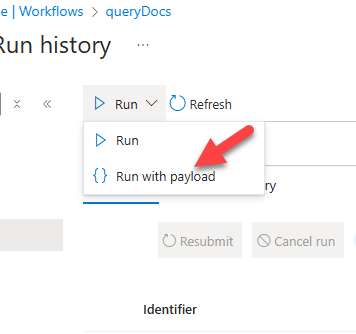
This can be a frustrating error because you won’t see any trigger invocations in the Logic App run history – so you might be tempted to think there is a network-related issue. That can be a cause of HTTP 503 errors, but it is more likely a runtime error within the workflow itself. If you haven’t enabled Application Insights on your logic app, then the best way to get the real error is to run the workflow locally in the browser, using the Run with payload option. Then you will get more informative error details, like the below examples.
Incorrect Vector Field List Name
Your error might look like this:
{
“code”: “ServiceProviderActionFailed”,
“message”: “The service provider action failed with error code ‘ServiceOperationFailed’ and error message ‘{\r\n \”Message\”: \“Unknown field ’embeddings’ in vector field list.\\r\\nStatus: 400 (Bad Request)\\r\\nErrorCode: InvalidRequestParameter\\r\\n\\r\\nContent:\\r\\n{\\\”error\\\”:{\\\”code\\\”:\\\”InvalidRequestParameter\\\”,\\\”message\\\”:\\\”Unknown field ’embeddings’ in vector field list.\\\”,\\\”details\\\”:[{\\\”code\\\”:\\\”UnknownField\\\”,\\\”message\\\”:\\\”Unknown field ’embeddings’ in vector field list.\\\”}]}}\\r\\n\\r\\nHeaders:\\r\\nCache-Control: no-cache,no-store\\r\\nPragma: no-cache\\r\\nServer: Microsoft-IIS/10.0\\r\\nclient-request-id: f6146528-81c2-49c8-a5fa-ddbf64f27258\\r\\nx-ms-client-request-id: f6146528-81c2-49c8-a5fa-ddbf64f27258\\r\\nrequest-id: f6146528-81c2-49c8-a5fa-ddbf64f27258\\r\\nelapsed-time: 33\\r\\nStrict-Transport-Security: REDACTED\\r\\nDate: Tue, 25 Mar 2025 05:07:36 GMT\\r\\nContent-Length: 202\\r\\nContent-Type: application/json; charset=utf-8\\r\\nContent-Language: REDACTED\\r\\nExpires: -1\\r\\n\”,\r\n \”ErrorCode\”: \”InvalidRequestParameter\”\r\n}’.”
}
In this case the error details reveal the true issue: you have not updated the vector list field name as specified above (changing to “text_vector”).
Incorrect Deployment Identifier
If in your parameters you have incorrectly identified the proper deployment identifiers for either your chat or your embeddings model, then you will see an error like this:
{
“code”: “ServiceProviderActionFailed”,
“message”: “The service provider action failed with error code ‘ServiceOperationFailed’ and error message ‘{\r\n \”Message\”: \“The API deployment for this resource does not exist. If you created the deployment within the last 5 minutes, please wait a moment and try again.\\r\\nStatus: 404 (DeploymentNotFound)\\r\\nErrorCode: DeploymentNotFound\\r\\n\\r\\nContent:\\r\\n{\\\”error\\\”:{\\\”code\\\”:\\\”DeploymentNotFound\\\”,\\\”message\\\”:\\\”The API deployment for this resource does not exist. If you created the deployment within the last 5 minutes, please wait a moment and try again.\\\”}}\\r\\n\\r\\nHeaders:\\r\\nx-ms-client-request-id: e39bb197-0cb8-4982-9e61-15659387f4ee\\r\\napim-request-id: REDACTED\\r\\nStrict-Transport-Security: REDACTED\\r\\nX-Content-Type-Options: REDACTED\\r\\nx-ms-region: REDACTED\\r\\nDate: Wed, 12 Mar 2025 03:30:43 GMT\\r\\nContent-Length: 197\\r\\nContent-Type: application/json\\r\\n\”,\r\n \”ErrorCode\”: \”DeploymentNotFound\”\r\n}’.”
}
Again, easiest way to get these values is from the Deployments blade in AI Foundry.
Happy chatting!  If you wish to build an ingestion workflow from a template instead of using Stephen’s pre-built example, that is entirely achievable as well (I managed to do it). You will just need to make a few adjustments, again mainly concerning the AI Search schema – but that might be the content of another blog post.
 About Dan Toomey
 Mind Over Messaging
Pingback: March 31, 2025 Weekly Update on Microsoft Integration Platform & Azure iPaaS - Hooking Stuff Together